One of the best part of development of technology, but it definitely takes some trial and error to figure out what works for your own class! Listed below are some of my favorites!
Class Dojo
Great behavior management tool! In the beginning of the year as a class we create a list of actions that would earn dojo points and actions that would cause them to be taken away. Then determine rewards if they hit certain point values. One of their favorites is lunch with a teacher or freebie snack, which is great because you don’t have to spend anything! Dojo also has a toolkit which includes a timer and random group maker where you can pick which kids not to put together too!

Downside: in order for it to be effective parents must be willing to check it and sign up for it.

Keynote
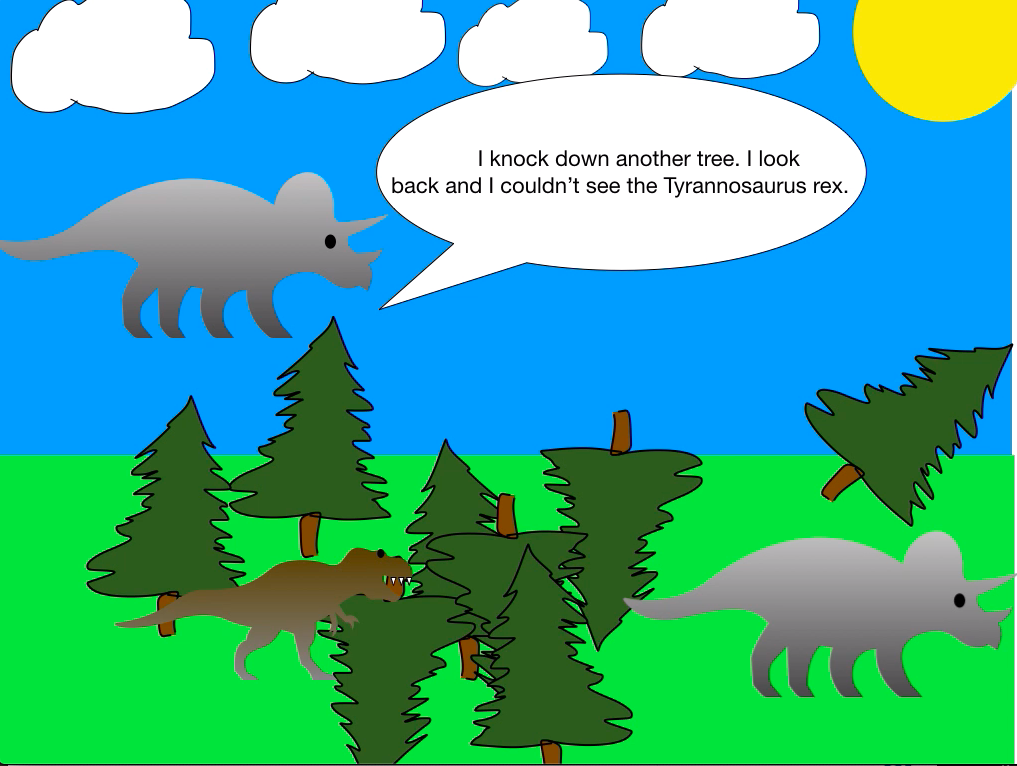
So much more than a presentation tool. They have updated it with all sorts of features. My favorite is the drawing tool and the ability to create an animation with their variety of shapes, or the images you draw yourself! Another example of Keynotes amazing feature can be found in my passionately curious blog post!
Downside: This is an incredible app but definitely one you’ve got to spend time figuring out. With all of these different features it takes some time to feel confident with all of these features.
Nearpod
Nearpod is another great teaching tool that I love! One of it’s great features is that it has student paced mode which is great for flipped teaching. Unlike Peardeck, Nearpod has a lot of premade lessons from other teachers. One of its newest features is titled “Time to Climb.” In many ways it is similar to Kahoot, but student’s can pick a character and see themselves advance up the mountain.
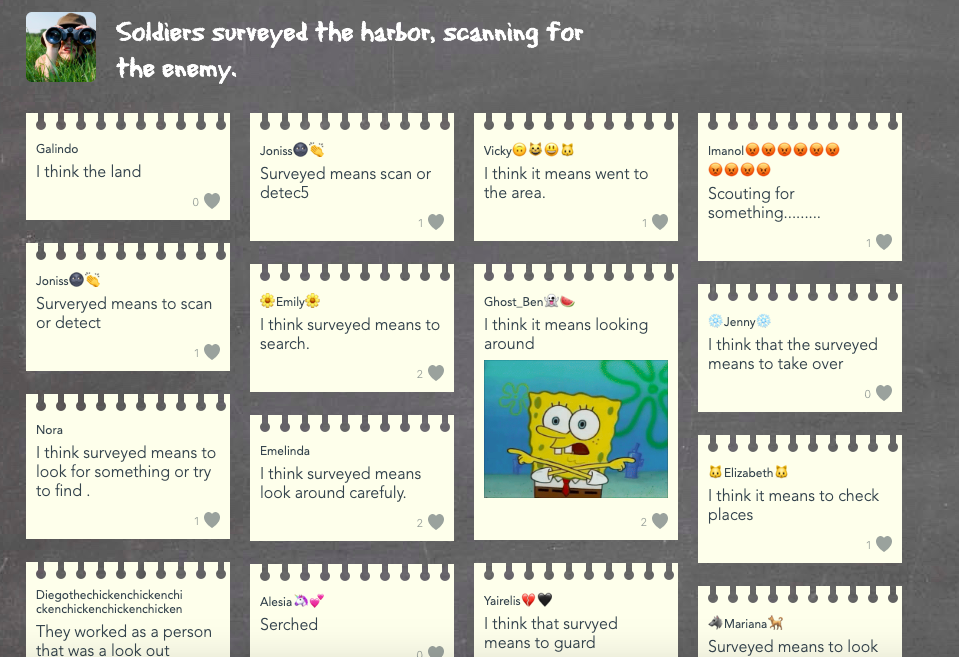
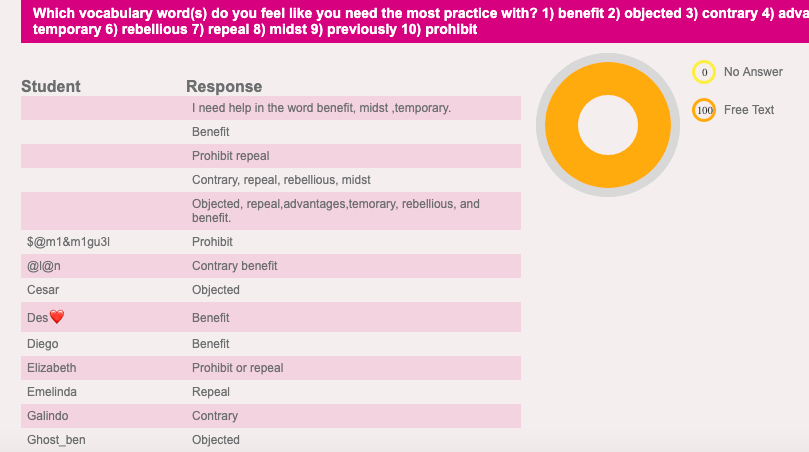
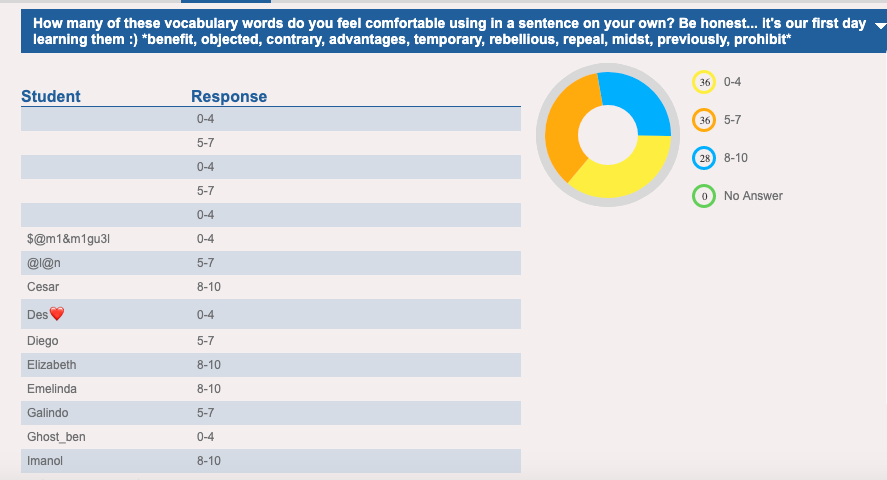
Downside: In many ways it is similar to Peardeck, but Nearpod does not allow you to be as creative. It’s templates are great but have a lot of structure for what you can and can’t do with them. There is a free version, but it does not have all of the features included. One of my favorite features that you have to pay for is student paced mode.
Notes
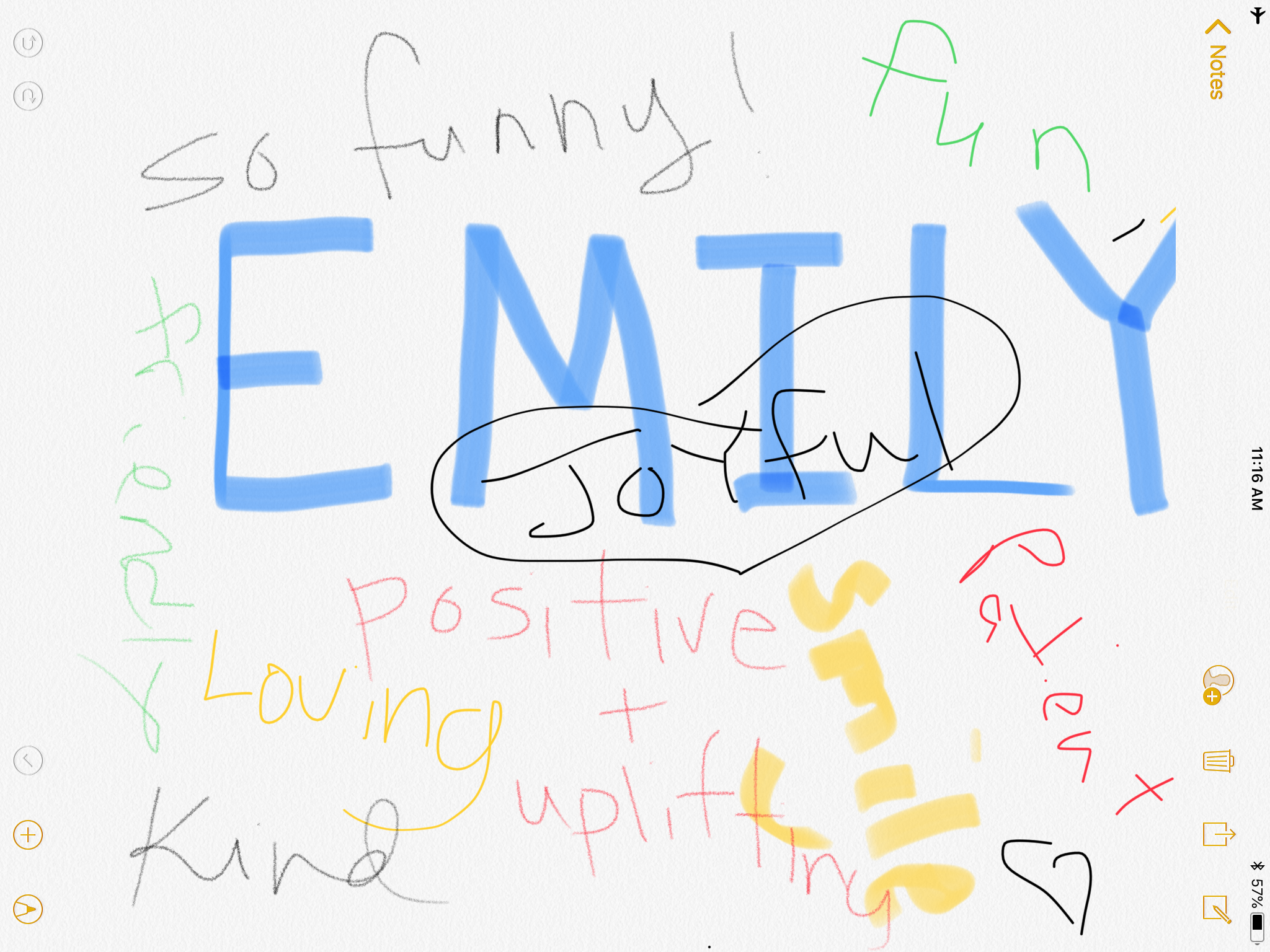
Notes is a basic app on the Ipad that is often overlooked! It can be more than a place to take notes about learning, but I like using it as a collaborative drawing tool! Earlier this year at a staff meeting we wrote our names in the middle and other teachers went around and wrote a positive trait about each other! For younger grades students could be in charge of drawing the picture and then verbally explaining it to make a caption underneath.
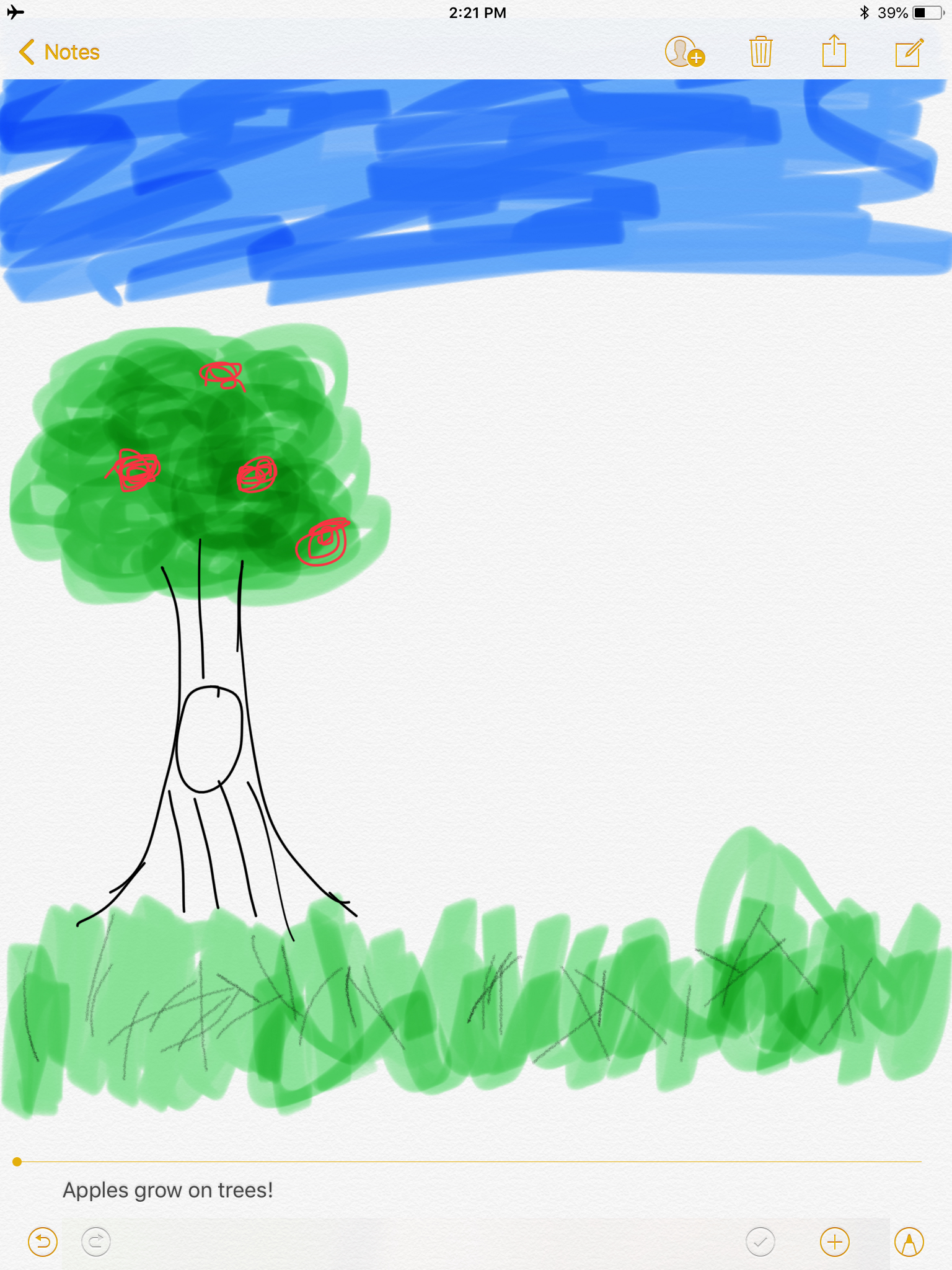
Downside: The color options are very limited. I would love if there was a larger color variety to choose from. You also can’t put text directly in the picture, it has to go either above or below the drawing.
Peardeck
This is by far my latest obsession and I love using it in my classroom! Takes any Google slide and makes it into an interactive lesson for your students! Each have to put in the presentation code which links up to their email. It comes with a lot of pre-made templates for pre, during and post lesson activities. It can also be set for students to navigate through on their own. Teacher’s can lock their screens and pull up their responses, which can be shown with or without names to hold them accountable for their work. When the lesson is over it is all emailed back to them for reference.
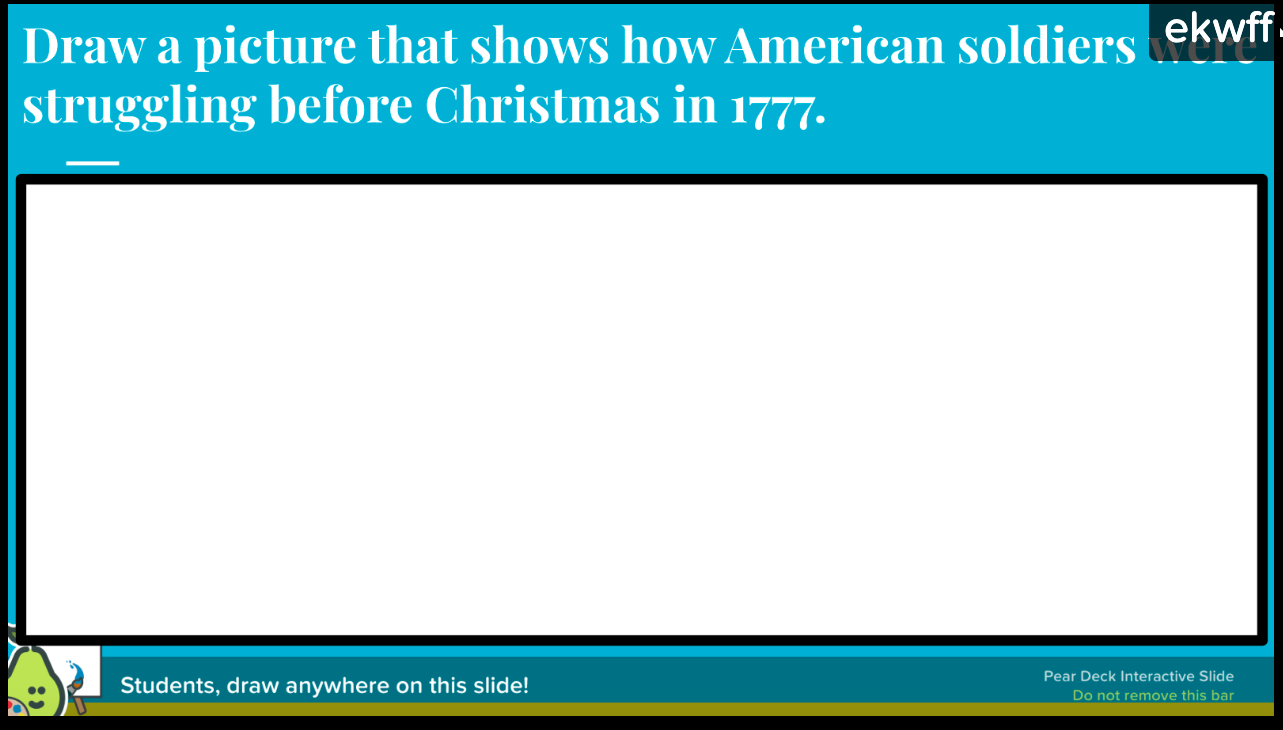
Downside: Here’s the catch to get all of its amazing features you have to pay for premium. Another drawback is it’s primarily used in schools that are 1 to 1. Lastly, you can’t upgrade your presentation once you’ve launched it, which is a huge bummer. You can edit it later but then all of past student work is lost and creates a lot more files.

Seesaw
Seesaw is a fabulous app to help students build an online portfolio of all of their work. There are 6 features including notes, drawing, camera, photo, link and file upload. Students can do voice overs to explain their thinking. There is also an activities library where other teachers have made assignments for their own class and now sharing with other Seesaw teachers!
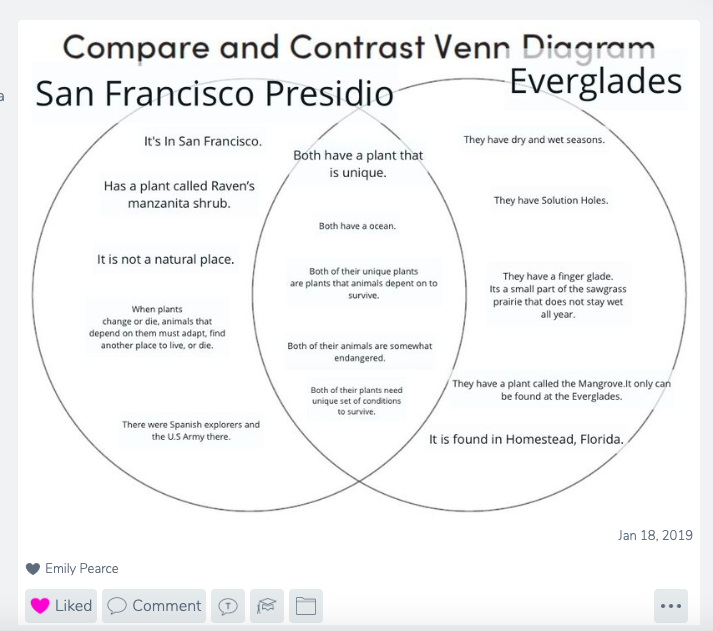
This student submitted their preplanning writing assignment on Seesaw. 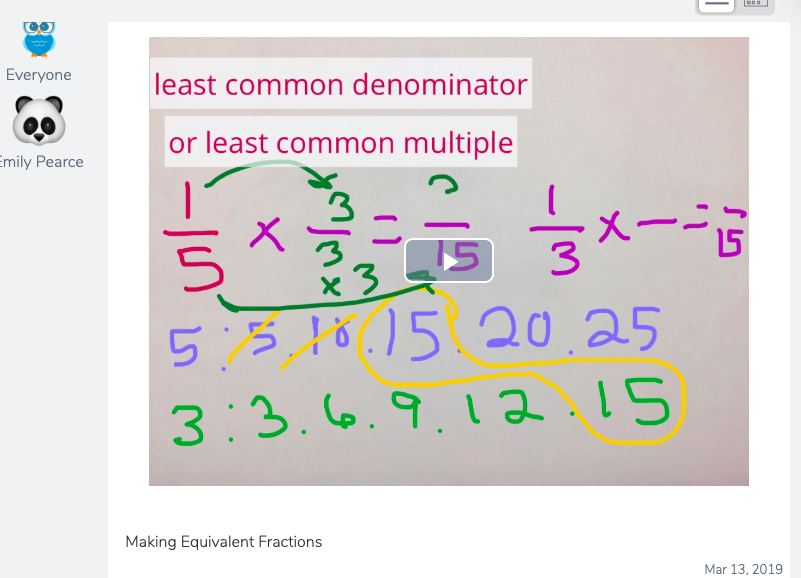
This was a video I was able to make and send out to students so they could watch it in their math rotation.
Downside: Seesaw is available for free but to access all of its features does cost money. Also it requires teachers to be really organized and purposeful in order for it to be used correctly, otherwise it’s just used like a dumping ground.
The company logo’s here belong to each of the organizations and are used to represent their company.

